

Restrict remote desktop to computer using advanced firewall rules.
If you have a personally-managed computer and Administrator access:
- Follow the instructions in this article to update your Windows Firewall so that only authorized hosts and networks can access your system via Remote Desktop (RDP).
Settings > Update and Security > Windows Security > Firewall and Network Protection > Advanced Settings > Inbound Rules > Remote Desktop – User Mode (TCP-In) > Properties > Scope > Remote IP address > Add > This IP address or subnet
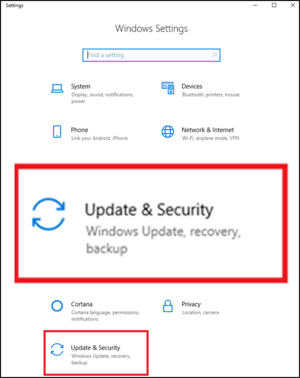
- Settings > Update and Security
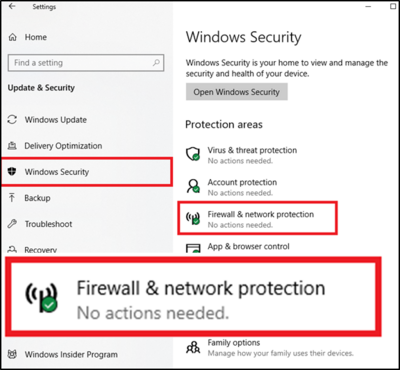
- Windows Security > Firewall and Network Protection
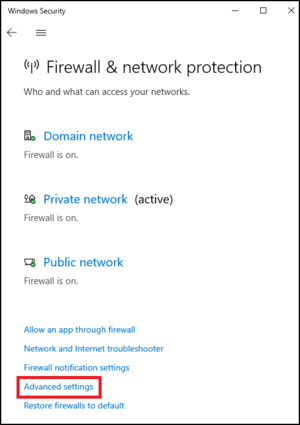
- Advanced Settings
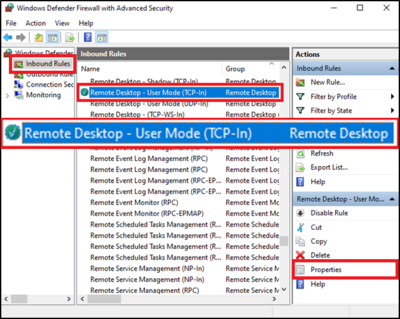
- Inbound Rules > Remote Desktop – User Mode (TCP-In) > Properties
Enable for TCP and UDP.
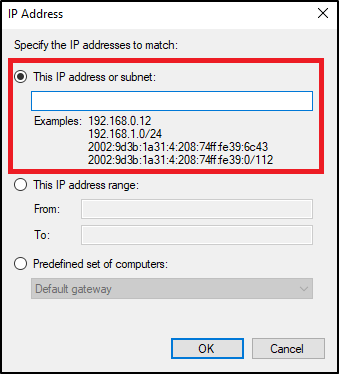
- Scope > Remote IP address > Add
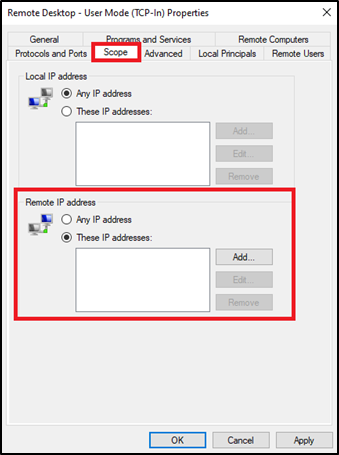
- Under This IP address or subnet, only add IP addresses and network subnets that should be authorized to connect to your computer’s Remote Desktop (RDP) service. Some common examples of campus IP addresses and subnets are listed in the section below.
- Settings to show configuration
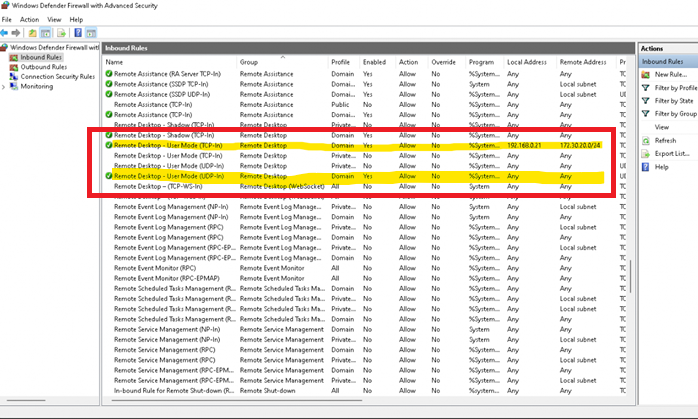
- Local IP Address of computer.
The computer to remote to.
Remote IP address
Range from private VPN tunnel
IP address of Local computer to manage the device.
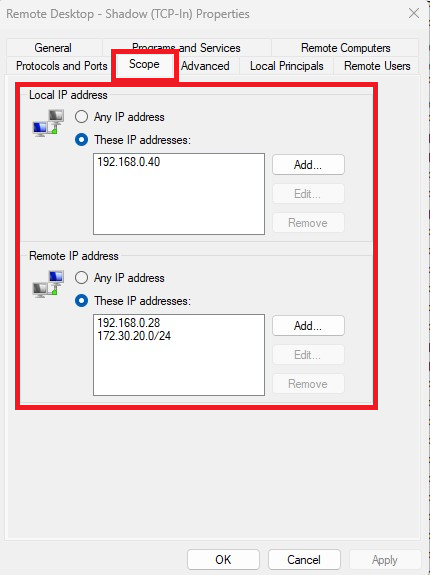
This gives the local office network extra security by not allowing computers to RDP to any other computers on the network.